
Camera Setup for Hand Tracking: Framing and FPS

The camera is the single biggest factor in how good hand tracking feels. Get two things right and everything else follows: a frame where roughly a quarter to a third of your torso is visible with your hand near center, and a frame rate of 20 FPS or higher. This tutorial covers both, plus the fix list for a slow or laggy cursor.
Prefer to watch? There is a video walkthrough of camera positioning, plus a second one on camera settings and camera properties.
This is part of our AirTouch getting-started series; the install tutorial comes first if you're brand new.
What's the ideal camera frame for gesture control?
Aim for this: one-quarter to one-third of your torso visible, your primary hand centered, and every edge of the screen comfortably within reach of your hand. Position yourself slightly off center toward your non-dominant side; right-handed users sit slightly left of center, left-handed users slightly right, which puts the working hand in the middle of the frame.

If the frame is off, adjust the camera zoom, or skip the fiddling entirely: turn on AutoZoom in Advanced Settings and AirTouch calculates the ideal frame for you.
One message worth knowing: if the video feed says "Hand Too Close," zoom out or move your hand farther from the camera.
How do I check my frame rate?
Launch AirTouch and raise your hand. The FPS counter sits in the upper-left corner of the video feed. Above 20 FPS, hand tracking feels immediate. Below that, gestures register late and the cursor trails your hand.

How do I fix a slow or laggy cursor?
If FPS is below 15, work through this list in order. Each step is a common culprit, and most lag cases resolve within the first three.
Close other applications competing for CPU. Video calls and browsers with many tabs are the usual suspects.
Update your camera drivers. Old drivers cap frame rates in surprising ways.
Plug the camera into a USB 3.0 port. A USB 2.0 port can throttle the video stream.
Restart your computer. Unglamorous, effective.
Try a different camera. Some built-in cameras top out at low frame rates; an inexpensive 30 FPS USB webcam often transforms the experience. Our guide to the best hand tracking camera options covers when an upgrade actually pays off.
How do I switch to a different webcam?
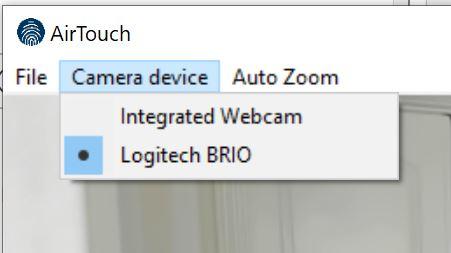
Open the Camera Device menu and choose your camera from the drop-down. AirTouch works with any standard RGB camera: built-in, USB, and most IP cameras. When you have a choice, favor the one that sustains the highest frame rate at a comfortable viewing angle.
Adjusting zoom, brightness, and other camera properties
For fine control over the image itself, open the File menu, choose Camera Settings, then click Camera Properties. Adjust zoom, brightness, or saturation, click Apply, then OK. Click Default to revert. One caution: Camera Properties change your camera's global settings, so the values carry over into other programs that use the same camera, and the available options vary by camera model.
Set it once, then forget it
Camera and Display settings are global in AirTouch, so once your room is framed and your FPS is healthy, every gesture profile you build on top inherits the same solid foundation. Next up: mapping gestures to actions, and the advanced settings that handle crowds, gloves, and kiosks.
Trying AirTouch on the camera you already own is the whole point. Start a free trial and see what your webcam can do.
Related: install AirTouch on Windows, every AirTouch gesture and how to map it, and gesture control and hand tracking software.
Watch the series: AirTouch video tutorials.
© 2026 Neural Lab, Inc.
Designed and built in Sunnyvale, CA