
AirTouch Gestures: The Full List and How to Map Them

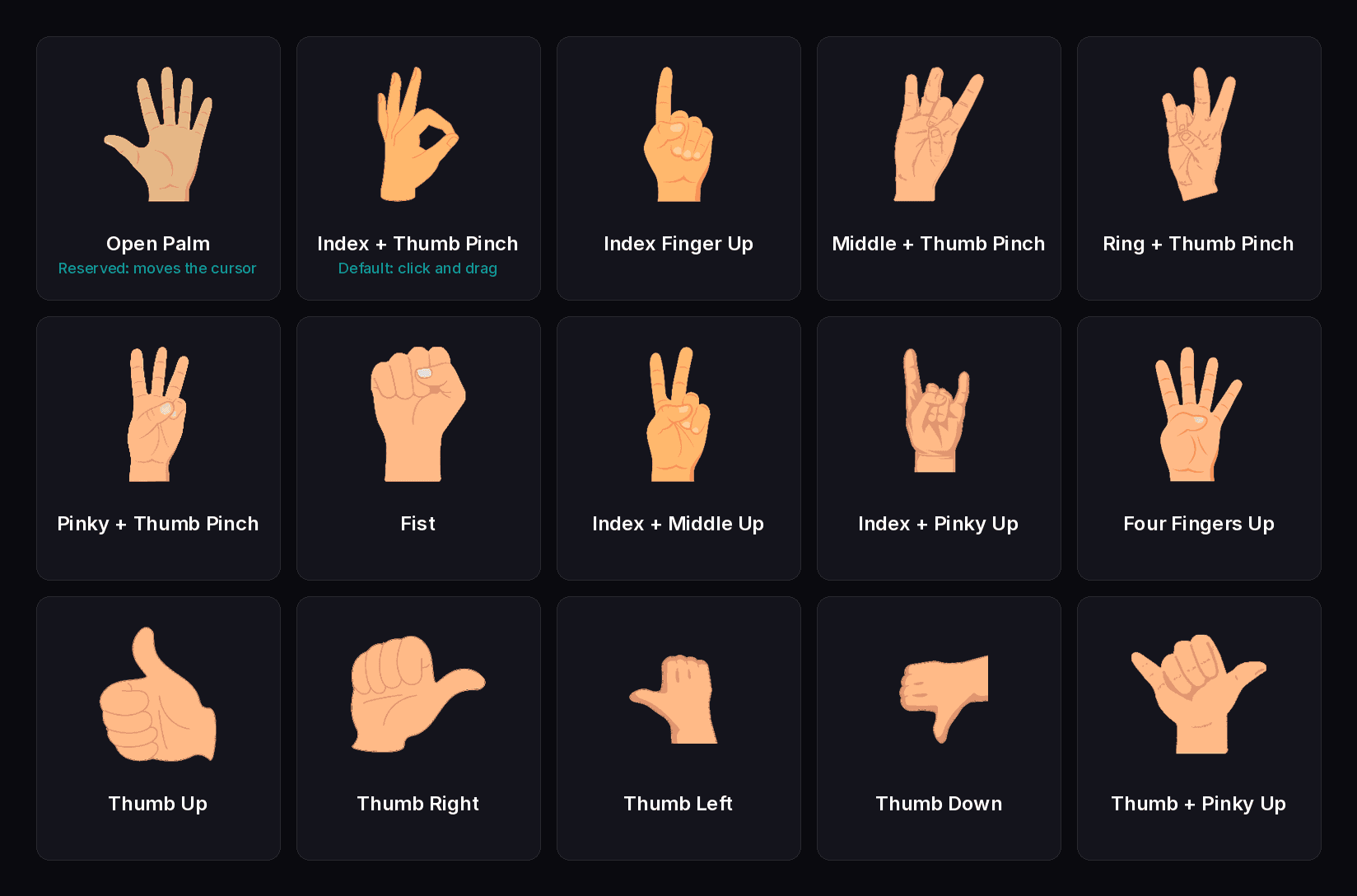
AirTouch recognizes 15 hand gestures. Two have jobs out of the box: an open palm moves the cursor, and an index-plus-thumb pinch clicks, taps, and drags. The other 13 are yours to assign, to any mouse event, keyboard shortcut, or touch action, from the Settings window. That's the entire mental model of gesture control in AirTouch, and this tutorial covers all of it.
Prefer to watch? There is a video walkthrough of gesture configuration, with the full transcript on the page.
If you haven't installed yet, start with the Windows install tutorial.
The full gesture list
Open Palm, Index + Thumb Pinch, Index Finger Up, Middle + Thumb Pinch, Ring + Thumb Pinch, Pinky + Thumb Pinch, Fist, Index + Middle Up, Index + Pinky Up, Four Fingers Up, Thumb Up, Thumb Right, Thumb Left, Thumb Down, and Thumb + Pinky Up. Every gesture works one-handed, on a standard camera, with no wearables.
The rules of open palm
Open palm is the reserved gesture, and it has three jobs. It's the default trigger that activates gesture control (you can assign a different trigger if you prefer). It always moves the cursor; that mapping can't be changed. And it's the reset: return to an open palm to stop scrolling or release a drag. Everything else in AirTouch is configurable, but open palm is the anchor that makes hand tracking predictable.
How to map a gesture to an action
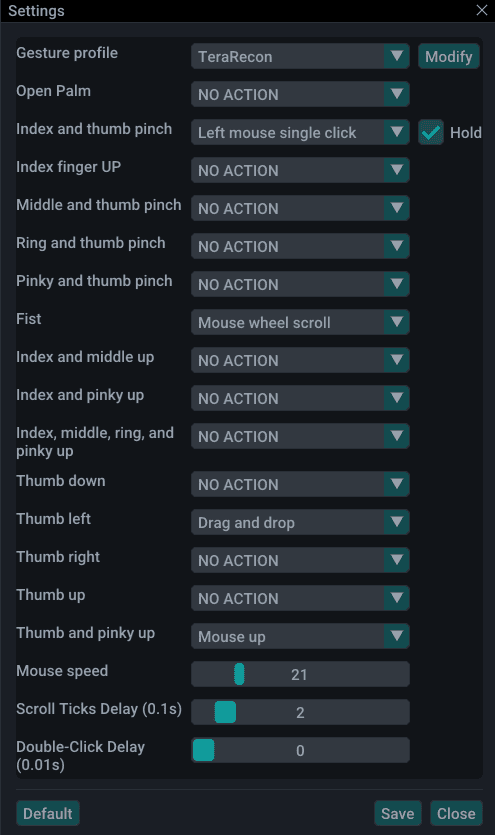
Open the File menu, choose Settings, and find the gesture you want in the mapping list. Pick an action from the drop-down on the right, click Save, and close the mapping window before testing. To restore the original mappings at any time, click Default.
How to map a gesture to a keyboard shortcut
Select Keyboard Shortcut from the action drop-down, then type the shortcut using a few rules: spell out modifier keys (ctrl, alt, shift; case doesn't matter), separate keys with a plus sign (ctrl+alt+o), and don't repeat a key within one shortcut. You can even combine a mouse click with keyboard keys in a single shortcut using lmousesingleclick, mmousesingleclick, or rmousesingleclick, listing the keyboard key first, as in ctrl+rmousesingleclick. Save and close Settings before testing.
This is where gesture control gets personal: a fist that presses F5 to start your slideshow, a thumbs-up that copies, two fingers that switch apps. If your keyboard can do it, your hand can trigger it.
How to scroll by hand
Map a gesture to Middle Mouse Wheel Scroll. Form the gesture, then move your hand up to scroll up or down to scroll down; the farther you move, the faster it scrolls. Return to an open palm to stop. The Scroll Tick slider in Settings tunes the speed: slide left for faster scrolling, right for slower.
Tuning cursor speed and reach
The Mouse Speed slider controls how far and how fast the cursor travels. If you can't reach the edges of the screen, increase Mouse Speed to extend your range. If the cursor overshoots, lower it. Small adjustments here make a big difference in how natural hand tracking feels.
Save different setups as profiles
Profiles store a complete gesture setup, so the operating room, the trade show booth, and your desk can each have their own. Create one from the profile drop-down (New Profile), rename or delete it with the Modify button. Gesture mappings and Advanced settings save per profile; Display and Camera settings stay global.
Keep going
With your gestures mapped, two tutorials round out the setup: camera framing and lag fixes, and the advanced settings that handle crowds, gloves, and kiosks. Or just start experimenting; Default is always there if you map yourself into a corner.
New to AirTouch? Start a free trial and map your first gesture today.
Related: install AirTouch on Windows and gesture control and hand tracking software.
Watch the series: AirTouch video tutorials.
© 2026 Neural Lab, Inc.
Designed and built in Sunnyvale, CA