
Does the Sony SRD Camera Come with Hand Tracking?

Not by itself. The camera built into the Sony Spatial Reality Display is an eye-tracking camera. Its job is to follow your eyes so the display can render glasses-free 3D from your exact viewpoint. Hand tracking is not built in. Add AirTouch, and that same camera does both jobs: the SRD keeps its eye tracking, and AirTouch reads your hand gestures through the same lens. No extra webcam needed, though there is one frame rate caveat covered below.
The catch is that Windows normally gives a camera to one app at a time, and the second app gets a busy error. Since Sony's display software and AirTouch both need the eye-tracking camera, you have to allow them to share it. This guide covers both ways to do that: the built-in Windows 11 setting, and AlterCam for PCs that do not have that setting.
Prerequisite: AirTouch installed and pointed at the SRD. If you have not done that yet, start with How to Set Up Hand Tracking on the Sony SRD, then come back here.
Step 1: Allow multiple apps to use the camera in Windows 11
Open Settings (Windows key + I) and go to Bluetooth & devices, then Cameras.
Under Connected cameras, click the SRD's eye-tracking camera.
Next to Advanced camera options, click Edit.
Turn on Allow multiple apps to use camera at the same time.
Optional: set Media type to the resolution and frame rate you prefer. Pick the option with the highest frame rate offered, or leave it on Let Windows choose.
Click Apply.

How do I know if my PC has this option?
The switch ships with recent Windows 11 releases (24H2 and later, delivered through Windows updates). The check takes ten seconds: open Settings, go to Bluetooth & devices, then Cameras, and click your camera. If an Advanced camera options section with an Edit button appears, you have it. If it does not appear, run Windows Update, restart, and look again. Still missing? Your build does not include it yet. Use the AlterCam method below instead.
No Advanced camera options? Share the camera with AlterCam
AlterCam is a Windows virtual camera app. It takes one real camera as its source and rebroadcasts the feed as "AlterCam Virtual Camera", which any number of apps can use at the same time.
Download AlterCam from altercam.com and install it like any Windows program.
Launch AlterCam and select the SRD's eye-tracking camera as the source camera. AlterCam starts broadcasting it to the virtual camera.
In each app that needs the feed, open that app's camera settings and select AlterCam Virtual Camera instead of the physical camera.
Step 2: Select the camera in AirTouch
Launch AirTouch and open the Camera device menu. Every camera Windows can see is listed. Select the SRD's eye-tracking camera, or AlterCam Virtual Camera if you used AlterCam. AirTouch switches to that feed immediately, and your hands take over the display.
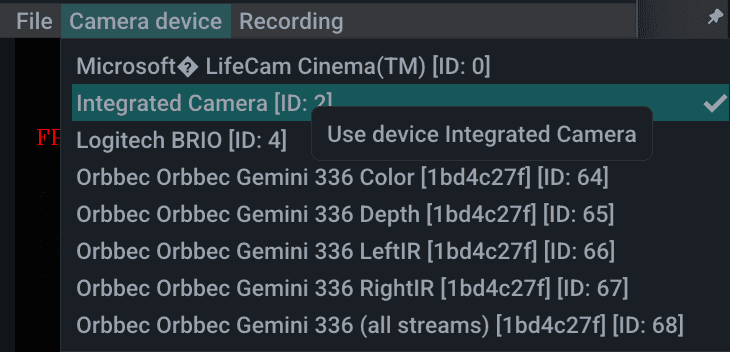
A note on frame rate
The SRD's built-in camera tops out at about 10 frames per second. AirTouch runs best on 20 to 30 frames per second. Below that, gestures still work, but you will notice a delay between your hand and the cursor. If interaction feels laggy on the built-in camera, switch to a USB webcam: plug it in, open the Camera device menu in AirTouch, and select it. Any standard 30 fps webcam removes the lag.
Do I need a separate webcam for hand tracking on the SRD?
AirTouch does not require one. The display's own camera can handle both eye tracking and hand tracking with zero added hardware. But because of the frame rate limit above, a standard USB webcam running at 30 frames per second is the smoothest option. Plug it in and pick it from the same Camera device menu, no sharing setup required.
Keep going
New to AirTouch on the SRD? Start with the full setup guide. See what gesture control looks like on the display on our AirTouch for Sony Spatial Reality Display page, or start a free trial today.
© 2026 Neural Lab, Inc.
Designed and built in Sunnyvale, CA