
How to Set Up Hand Tracking on the Sony SRD

To set up hand tracking on a Sony Spatial Reality Display, install AirTouch on the Windows PC that drives the display, then select the SRD as your working area in AirTouch Display Settings. The whole setup takes about five minutes, and in many cases you will not need any extra hardware. AirTouch can run on the display's built-in eye-tracking camera.
The Sony Spatial Reality Display (ELF-SR1 and ELF-SR2) shows depth-accurate 3D without glasses or a headset. Out of the box, you still control that 3D content with a mouse. AirTouch activates gesture control on the Sony SRD, so you can reach toward the screen and rotate, navigate, and select 3D content with your bare hands. It converts your hand movements into the mouse, keyboard, and tap inputs your 3D software already understands, so nothing needs to be ported.
What you need
A Windows PC connected to the Sony Spatial Reality Display (ELF-SR1 or ELF-SR2)
The SRD set up as a second display (it does not need to be the main display)
An AirTouch license or free trial
A camera: the SRD's built-in eye-tracking camera (see our camera sharing guide) or any standard RGB webcam
Step 1: Arrange your displays in Windows
Open Windows Settings and go to System, then Display. Drag the Spatial Reality Display so it sits to the left or right of your main screen, matching where it physically sits on your desk. Click Apply.
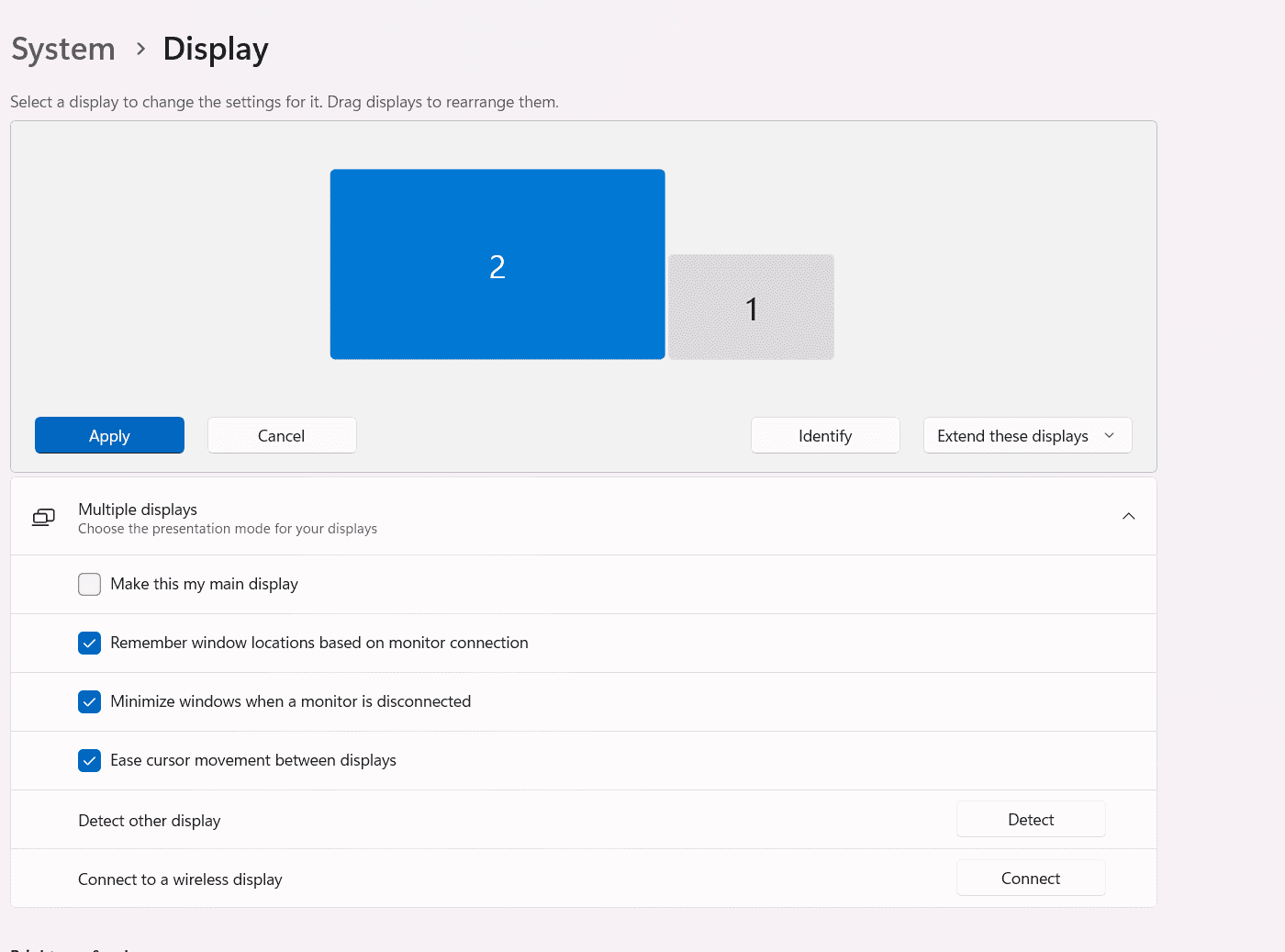
Tip: the SRD does not need to be your main display. Any position works as long as the on-screen arrangement matches your desk.
Step 2: Download and install AirTouch
Download the AirTouch installer for Windows, run it, and activate your license when prompted. If you are new to AirTouch, start a free trial.
Step 3: Open Display Settings in AirTouch
Launch AirTouch and open File, then Display Settings.
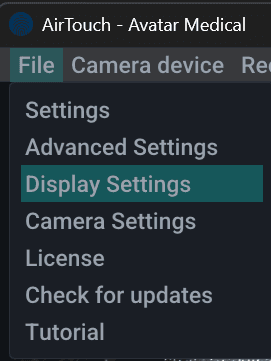
Step 4: Select the SRD as your working area
In the working area dropdown, select the Sony SRD display. This tells AirTouch which screen your hands will control. Click Save.
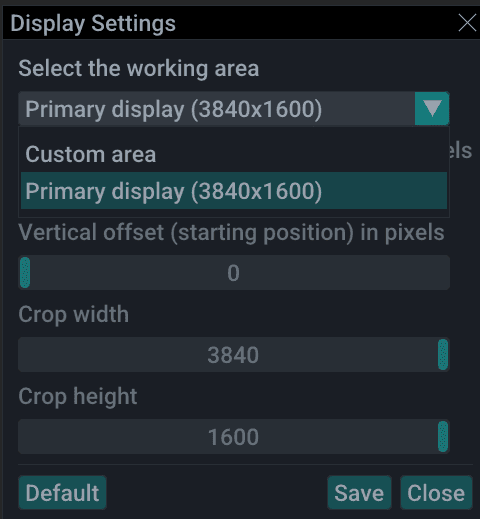
Test your hand tracking
Reach toward the Spatial Reality Display and move your hand. The cursor should follow. Pinch to click, and use your gestures to rotate and navigate 3D content. That is it, you are controlling glasses-free 3D by hand.
How do I activate gesture control on the Sony SRD?
Gesture control activates as soon as AirTouch is installed, licensed, and pointed at the SRD in Display Settings. There is no separate activation switch. If gestures stop responding, check that AirTouch is running and that the SRD is still selected as the working area.
Troubleshooting
The cursor moves on the wrong screen. Reopen File, then Display Settings, and confirm the Sony SRD is selected as the working area.
AirTouch does not see my camera. Open the Camera device menu in AirTouch and select the SRD's eye-tracking camera or your webcam. To share the SRD's camera with the display software, follow the camera sharing guide.
Tracking feels off. Make sure the camera has a clear view of your hands and that your Windows display arrangement matches your physical desk layout.
Next step: use the SRD's own camera
Skip the webcam entirely. The display's built-in eye-tracking camera can handle hand tracking too. Read Does the Sony SRD Camera Come with Hand Tracking? to set up camera sharing in two minutes.
Learn more
See what hand tracking on the SRD looks like in action on our AirTouch for Sony Spatial Reality Display page, or start a free trial and set it up today.
© 2026 Neural Lab, Inc.
Designed and built in Sunnyvale, CA